
VMware Workstation
VMware Workstation — приложение, обеспечивающее запуск на компьютере сразу нескольких ОС. Программа эмулирует независимый ПК и дает возможность работать с ним, как с привычной системой, в том числе устанавливать необходимые операционки, утилиты и приложения. Чтобы воспользоваться функциями программы, надо скачать последнюю версию VMware Workstation на русском языке.

| Лицензия | Условно-бесплатная |
| ОС | Windows 10/8,1/8/7 |
| Язык интерфейса | Русский, английский |
| Разработка | VMware, Inc. |
| Назначение программы | Эмулятор |
Описание возможностей
Выгода программного пакета VMware Workstation в удобном тестировании разных программ в популярных ОС, при этом действующая на пользовательском компьютере операционка не пострадает. Приложение будет полезно программистам, разрабатывающим кроссплатформенные продукты и людям, которым просто интересно познакомиться с разными операционками.
С помощью VMware Workstation между несколькими виртуальными машинами можно организовать сеть, а также наладить взаимодействие с внешними устройствами.
Программа поддерживает 64-битные операционки гостевого типа Windows, FreeBSD, Solaris x86, Linux. В результате пользователи, программисты и тестировщики могут параллельно запускать ОС на 32/64 бита на едином оборудовании.
Приложение оптимизировано для профиспользования. В полном масштабе обеспечит одновременный запуск нескольких ОС — Novell NetWare, Windows, Linux, Solaris x86, NetWare.
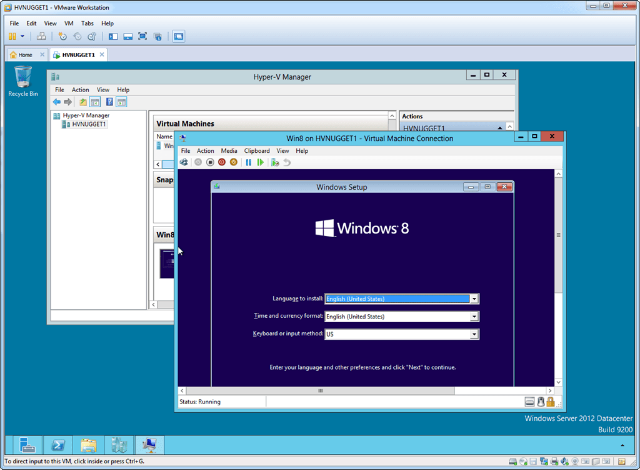
Как работать с программой
Нужно бесплатно скачать VMware Workstation и запустить от имени администратора. Когда установка завершится, ПК необходимо перезагрузить. Инсталляция ОС на виртуальный компьютер происходит так же, как на обычный. Понадобится дистрибутив/ISO-образ или ключи доступа к тем ОС, которые планируется использовать.
Путь дальнейших действий: «Файл» (File) — «Новая виртуальная машина» (New Virtual Machine) — «Обычный» (Typical). На этом месте программа попросит установочный диск и, если распознает ОС, то проведет простую инсталляцию (Easy Installation). Если задействуется физический носитель с операционкой, его нужно вставить и найти в VMware.
Для ISO-образа нужно открыть месторасположение этого файла на ПК. Можно оставить виртуальную машину пустой, а ОС установить позднее. Если все выполнено успешно, на рабочем столе появится ярлык. После ввода ключа доступа к ОС необходимо дать эмулятору имя и выделить на винчестере место для виртуального оборудования.
Действия с эмулятором
Аппаратное обеспечение виртуального ПК умеет создавать нужное оборудование в «Настройках оборудования» (Customize Hardware). Пользователь может задать запуск машины вместе со стартом работы компьютера.
Между машиной и ПК файлы перемещаются простым перетаскиванием, причем на новом месте создается копия, а сам файл остается в изначальной локации.
Принтер устанавливается по пути «VM-Настройки» (Settings) — «Оборудование» (Hardware) —«Добавить» (Add). Далее выбирается принтер и инсталлируется. Если драйверы для него на компьютере уже есть, закачивать их не надо.
Если нужно использовать USB, это делается обычным способом, единственное — накопитель доступен лишь для одного устройства и, если виртуальная техника активна, то автоматически выбирается подключение к ней.
Можно выполнить снимок эмулятора, и машина будет грузиться в определенном состоянии. Путь для снимка: «VM-Снимок» (Snapshot) — «Сделать снимок» (Take Snapshot). Для быстродействия удобно пользоваться горячими клавишами — Ctrl + Alt + Enter для открытия в полноэкранном виде, Ctrl + Alt + Tab для перемещения между несколькими эмуляторами.
Для запуска/отключения виртуальной техники нужно выбрать ее тип в меню VM и способ окончания работы по аналогии с командами на обычном ПК. Если требуется познакомиться с полной инструкцией по работе с виртуальной техникой, рекомендуется заглянуть на официальный сайт VMware Workstation.
Локальные виртуальные машины VMware Workstation Player
VMware Workstation Player обеспечивает удобную работу с несколькими операционными системами в виде виртуальных машин на ПК с ОС Windows или Linux.
Работа с виртуальными операционными системами на одном ПК
Удобное и эффективное локальное решение по виртуализации
Решение Workstation Player, созданное на основе той же платформы гипервизора, что и vSphere, которая разрабатывается уже в течение 20 лет, является одним из самых надежных и стабильных решений для виртуализации локальных рабочих мест.
Идеальное средство для обучения
Использование виртуальных операционных систем на настольных ПК дает учащимся возможность изучить предоставление ПО, операционные системы и разработку приложений в безопасных, точно смоделированных локальных песочницах.
Реализация концепции работы из любой точки
Обеспечьте изоляцию корпоративных виртуальных рабочих мест от принадлежащих пользователям устройств за счет использования безопасных виртуальных контейнеров практически на любом ПК с ОС Windows или Linux с возможностями управления, совместимыми с такими сервисами, как Workspace ONE.
Безопасный просмотр веб-сайтов в защищенной песочнице
Обеспечьте безопасную работу второго виртуального рабочего места в изолированной среде с другими параметрами конфиденциальности, средствами и конфигурациями сети для защиты ОС узла при работе в сети.
Поддержка нескольких операционных систем

Скидка на Workstation Player для образовательных учреждений
Сэкономьте при покупке VMware Workstation для студентов, абитуриентов, родителей, преподавателей и т. д.
Сценарии использования

Решения для образовательных учреждений
Современные технологии развиваются необычайно быстро. Решения VMware для виртуализации не только занимают лидирующие позиции, но и дают возможность тестировать эти технологии в виртуальной песочнице на имеющихся компьютерах. Студенты получают удобную среду для изучения новых операционных систем, а преподаватели могут предоставлять воспроизводимые лабораторные среды для занятий в классе без использования внутреннего облака.

Решения для бизнеса
Решение Workstation Player позволяет компаниям поддерживать работу территориально распределенных сотрудников, предоставляя образ корпоративного виртуального рабочего места, которое можно запускать в управляемом или неуправляемом режиме на ноутбуке или настольном компьютере конечного пользователя. Пользователи получают удобный доступ к корпоративным виртуальным рабочим местам и приложениям, а ИТ-администраторы — возможность централизованного управления и обеспечения соблюдения политик безопасности при использовании VMware Workspace ONE.
Технические характеристики
Системные требования
VMware Workstation работает на стандартных системах x86 с 64-разрядными процессорами Intel и AMD под управлением 64-разрядных операционных систем узла Windows и Linux. Дополнительные сведения см. в документации по системным требованиям.
Общие требования к ОС узла
VMware Workstation Pro и Player работают на большинстве 64-разрядных ОС узла Windows или Linux.
Обратите внимание, что узлы Windows 7 больше не поддерживаются, Workstation 16 на них работать не будет.
Установка Workstation Pro:
Поддерживаемые гостевые ОС
VMware Workstation 16 поддерживает сотни 32-разрядных и 64-разрядных гостевых операционных систем.
Вот список самых популярных ОС:
Полный список поддерживаемых гостевых ОС и ОС узла см. в руководстве VMware по совместимости.
Для узлов с поддержкой Hyper-V:
Операционные системы узла:
Минимальные требования для запуска среды выполнения контейнера с помощью Workstation в ОС узла Windows:
Минимальные требования для поддержки темной темы Workstation в ОС узла Windows:
Для поддержки трехмерной графики с аппаратным ускорением:
Требования к оборудованию:
Требования к программному обеспечению:
64-разрядная операционная система узла:
Гостевая операционная система
* За некоторыми исключениями следующие процессоры не поддерживаются:
Следующие процессоры поддерживаются:
Полный список поддерживаемых гостевых ОС и ОС узла см. в руководстве VMware по совместимости.
Streamlined PC Virtualization for Business
VMware Workstation 12 Player is a desktop virtualization application that runs one or more operating systems on the same computer without rebooting. With its simple user interface, unmatched operating system support and portability, it makes it easier than ever to get their users up and running with a corporate desktop.
Join the Workstation Player Community
Get tips and technical insights from the user community and forum.
Workstation Player FAQs
Get answers to frequently asked questions for installing, licensing, downloading and more.
WHAT’S NEW

Built for Windows 10 and More
Workstation 12 Player is the best way to run Windows 10 with your existing Windows or Linux PC. In a few simple steps you can easily install Windows 10 in a virtual machines from a disk or ISO image using the Workstation Player Virtual Machines Wizard. With Workstation 12 Player you can start taking advantage of the latest Windows 10 features like Cortana the personal digital assistant, inking capabilities in the new Edge web browser, or even start building Universal Apps for Windows 10 devices. You can even ask Cortana to launch VMware Workstation right from Windows 10.
For organizations and technical users that run the latest Linux distributions, Workstation 12 Player supports Ubuntu 15.04, Red Hat Enterprise Linux 7.1, Fedora 22, and many more.
ACCESS AND CONTROL

Run Restricted and Expiring Virtual Machines
VMware Workstation Player has the ability to run restricted virtual machines created by VMware Workstation Pro or VMware Fusion Pro. Restricted virtual machines are the easiest way to secure corporate desktops with encryption, runtime password protection, USB access restriction, isolation between the host and guest OS, and time limitation. Workstation 12 Player now improves the performance of encrypted VMs during suspend and resume operations with up to 3X faster performance over previous versions of Workstation.
For workers assigned to short-term projects, temporary employees, or software evaluations, Workstation Player allows you to run restricted virtual machines expire at a predefined date and time. When powered on, the virtual machine will query the server at specified time intervals, storing the current system time in the restricted virtual machine’s policy file as the last trusted timestamp. An expired virtual machine will automatically suspend and will not restart without administrator intervention.
STATE OF THE ART VIRTUALIZATION
Ready for the Latest Hardware
Take advantage of the latest Intel based tablets with Workstation Player virtual tablets sensors. Leverage the latest Microsoft Surface tablets with Workstation Players virtual accelerometer, gyroscope, compass and ambient light sensor to enable applications running in the virtual machines to respond when a user moves, rotates and shakes their tablet. Whether you are running on a laptop, tablet or desktop, Workstation 12 Player supports the latest Intel 64-bit x86 processors, including the Broadwell and Haswell microarchitecture for maximum performance.
Ready for High Resolution Displays
Workstation 12 Player has been optimized to support high resolution 4K UHD (3840 x 2160) displays for Desktops and QHD+ (3200×1800) displays used in laptops and x86 tablets providing you with a crisp and detailed experience. Workstation 12 Player now supports multiple monitors on the host with different DPI settings so you can run your brand new 4K UHD display along with your existing 1080P HD display.
Display Powerful 3D Graphics
Workstation 12 Player now supports DirectX 10 and OpenGL 3.3, delivering a more fluid and responsive experience when running 3D applications. You now have access to all the applications that require DirectX 10 such as Microsoft’s Power Map tool for Excel, allowing you to visualize data in a whole new dimension. In addition, Workstation Player makes running highly demanding 3D applications like AutoCAD or SOLIDWORKS a snap in a virtual machine.
Enhanced Connectivity
Taking advantage of the latest hardware supporting HD audio with 7.1 surround sound, USB 3.0, and Bluetooth devices makes it easy to get your new webcam, headset or printer connected in a virtual machine. Workstation 12 Player now supports USB 3.0 in Windows 7 besides Windows 8 for ultra-fast file transfers with external storage devices. In addition Workstation 12 Player improves performance of Skype or Lync conference calls within guest virtual machines so you can conduct crystal clear conference calls from your virtual machines.
FEATURES
Easy PC Virtualization for Windows and Linux
VMware Workstation Player provides a streamlined user interface for creating, running and evaluating operating systems and applications in a virtual machine on Windows or Linux PCs. Easily interact and exchange data between applications running in the virtual machine and the desktop.
Unmatched OS Support for Ultimate Compatibility
Virtual Machine Portability
With VMware Workstation Player, complete desktop environments including the operating system, applications and user configurations can be containerized in a virtual machine and easily shared. Instead of buying and shipping additional hardware, reduce costs by providing VMware Workstation Player along with a virtual machine containing your secure desktop image.
Run Restricted Virtual Machines
Workstation Player has the ability to run restricted virtual machines created by VMware Workstation or VMware Fusion Pro. Restricted virtual machines are the easiest way to secure corporate desktops with encryption, runtime password protection, USB access restriction, isolation between the host and guest OS, and time limitation. Workstation Player makes it incredibly easy to ensure corporate compliance by running restricted virtual machines.
Consolidate and Recycle Old PC Hardware
It’s never been easier to consolidate and recycle your old computers. Use the free VMware vCenter Converter utility accessible from Workstation Player to turn existing Windows and Linux based computers into virtual machines and eliminate the need to re-install and re-configure your existing OS and applications. Once converted, use Workstation Player to manage and run all your virtual machine on new hardware.
Workstation Player for IT and Academic Professionals
Workstation Player is designed for IT professionals who need to efficiently create and deliver a virtual desktop to employees, contractors or customers. It also allows academic professionals to quickly deliver complete virtual desktops to students preconfigured with all the lessons, applications and tools required for the course while increasing control and security.
Workstation 12 Player Free for Personal Use
Workstation 12 Player is licensed for commercial use and is enabled to run restricted virtual machines. If you simply want to learn more about virtual machines or run virtual machines at home in a non-commercial environment you may use Workstation 12 Player at no cost.
RESOURCES
Technical Information
Player Community
COMPARE WORKSTATION 12 PLAYER
Compare VMware Workstation 12 Player to VMware Player 7 Pro
Key Features
VMware Player 7 Pro (licensed)
VMware Workstation 12 Player (licensed)
Compare VMware Workstation 12 Player (Unlicensed) to VMware Workstation 12 Player (Licensed)
Key Features
VMware Workstation 12 Player (unlicensed)
VMware Workstation 12 Player (licensed)
Compare VMware Workstation 12 Player to VMware Workstation 12 Pro
Key Features
VMware Workstation 12 Player (licensed)
VMware Workstation 12 Pro
Introducing VMware Horizon FLEX
Features
VMware Workstation Player
VMware Horizon FLEX
TECH SPECS
System Requirements
Host Operating Systems (64-bit required)
Guest Operating Systems
Product
What is VMware Workstation Player?
What is VMware Workstation Player?
VMware Workstation Player (formerly known as Player Pro) is a desktop virtualization application that is available for free for personal use. A Commercial License can be applied to enable Workstation Player to run Restricted Virtual Machines created by VMware Workstation Pro and Fusion Pro.
Can I still use VMware Workstation Player for free?
Can I still use VMware Workstation Player for free?
VMware Workstation Player is free for personal non-commercial use (business and non-profit use is considered commercial use). If you would like to learn about virtual machines or use them at home you are welcome to use VMware Workstation Player for free. Students and faculty of accredited educational institutions can use VMware Workstation Player for free if they are members of the VMware Academic Program.
What can I do with VMware Workstation Player?
What can I do with VMware Workstation Player?
Use VMware Workstation Player to create, run, evaluate, and share software running in virtual machines:
What is the difference between the free and paid editions of VMware Workstation Player?
What is the difference between the free and paid editions of VMware Workstation Player?
VMware Workstation Player is a free download, but purchasing and entering a license key entitles the users to use the product commercially for employees, training organizations, contractors and can be transferred to partners or potential customers. When licensed, VMware Workstation Player is enabled to run restricted virtual machines created by VMware Fusion Pro or VMware Workstation Pro. Additionally, when licensed, VMware Workstation Player better supports mass deployments to thousands of users including installation options and custom configuration settings to run unattended installs using system configuration software and hide unwanted features.
Installation
Can VMware Workstation Player install on the same machine as other VMware products?
Can VMware Workstation Player install on the same machine as other VMware products?
No. VMware Workstation Player is not designed to co-install with other VMware products. If an installation of VMware Workstation, VMware Workstation Pro, or VMware Server is detected on a machine where Workstation Player is being installed, the Workstation Player installation will display an error message and abort. However, if you purchase and install Workstation Pro, a version of Workstation Player that will work is included.
What are the minimum PC requirements to install and use VMware Workstation Player?
What are the minimum PC requirements to install and use VMware Workstation Player?
We recommend that you have a 1 GHz or faster 64-bit processor (2GHz recommended) and 2GB RAM minimum (4GB RAM recommended). You must have enough memory to run the 64-bit host operating system, plus the memory required for each guest operating system and for applications on the host and guest. VMware Player requires approximately 150MB of disk space to install the application. For more details on requirements, see the VMware Player Documentation.You can download VMware Workstation Player software from the Workstation Player Download page for evaluation in a non-commercial environment.
Does Workstation 12 Player still support 32-bit operating systems?
Does Workstation 12 Player still support 32-bit operating systems?
While Workstation 12 Player requires a 64 bit operating system on the host PC you can still run your favorite 32-bit Windows and Linux guest operating systems inside a virtual machine on Workstation 12 Player.
What if I still need to run Workstation 12 Player on a 32-bit Host?
What if I still need to run Workstation 12 Player on a 32-bit Host?
Player 6 Plus is the last version that supports either a 32-bit or 64-bit operating systems running on the host PC. If you plan to run 64-bit virtual machines with VMware Workstation Player, please refer to the Knowledge Base article on compatible 64-bit CPUs.
Downloads
Where do I download free «minor» updates?
Where do I download free «minor» updates?
VMware Workstation Player will prompt you for updates automatically. To manually check for updates, click on the «VMware Workstation Player» drop down menu in VMware Workstation Player and choose «Check for Updates.»
How can I download VMware Workstation Player?
How can I download VMware Workstation Player?
You can download VMware Workstation Player software from the Workstation Player Download page for evaluation in a non-commercial environment.
Licensing and Upgrades
How do I register my copy of VMware Workstation Player with VMware?
How do I register my copy of VMware Workstation Player with VMware?
If you purchased the product from the VMware Online store, your license key is automatically registered. If you purchased from a reseller, you need to manually register your license key in My VMware. Please consult this KB article for detailed instructions on license key registration.
How do I purchase Workstation Player upgrades?
How do I purchase Workstation Player upgrades?
VMware Workstation Player upgrades are available for purchase on the VMware online store or through VMware resellers.
Do I get free updates (not upgrades) when I purchase VMware Workstation Player?
Do I get free updates (not upgrades) when I purchase VMware Workstation Player?
Yes. The price of VMware Workstation Player includes an update service that entitles you to product updates and patches, which are new releases of Workstation Player within a given product version (e.g. x.1, and x.1.1, and so forth). VMware Workstation Player will automatically download updates or you may download updates by visiting the Workstation Player Download Page.
NOTE: The price of Workstation Player entitles a customer to free updates, but not free upgrades. Upgrade releases contain functional enhancements or significant extensions and must be purchased separately unless you have an active support and subscription (SnS) contract.
Support
When does complimentary support start?
When does complimentary support start?
Complimentary support starts when your VMware Workstation Player license is registered. Registration takes place automatically if you purchase your product from the VMware Online store. If you purchased from a reseller, you need to register your license in My VMware. Please consult this KB article for detailed instructions on license key registration.
How long does complimentary support last?
How long does complimentary support last?
Complimentary support for VMware Workstation Player is valid for 30 days from product registration.
Can I use a support incident for different versions of Player Pro/Workstation Player, for example Player 7 Pro and Workstation 12 Player?
Can I use a support incident for different versions of Player Pro/Workstation Player, for example Player 7 Pro and Workstation 12 Player?
Yes, you can purchase support incidents and open a support request for any product version that is still officially supported by VMware.
What is the support period for VMware Workstation Player?
What is the support period for VMware Workstation Player?
VMware Workstation Player follows the Personal Desktop lifecycle policy. Please refer to our lifecycle policies for detailed information and end of support dates.